
Mobile only · 4 steps
Prepare for offline use
Get your project and maps ready before you leave coverage.
01
Choose an offline area
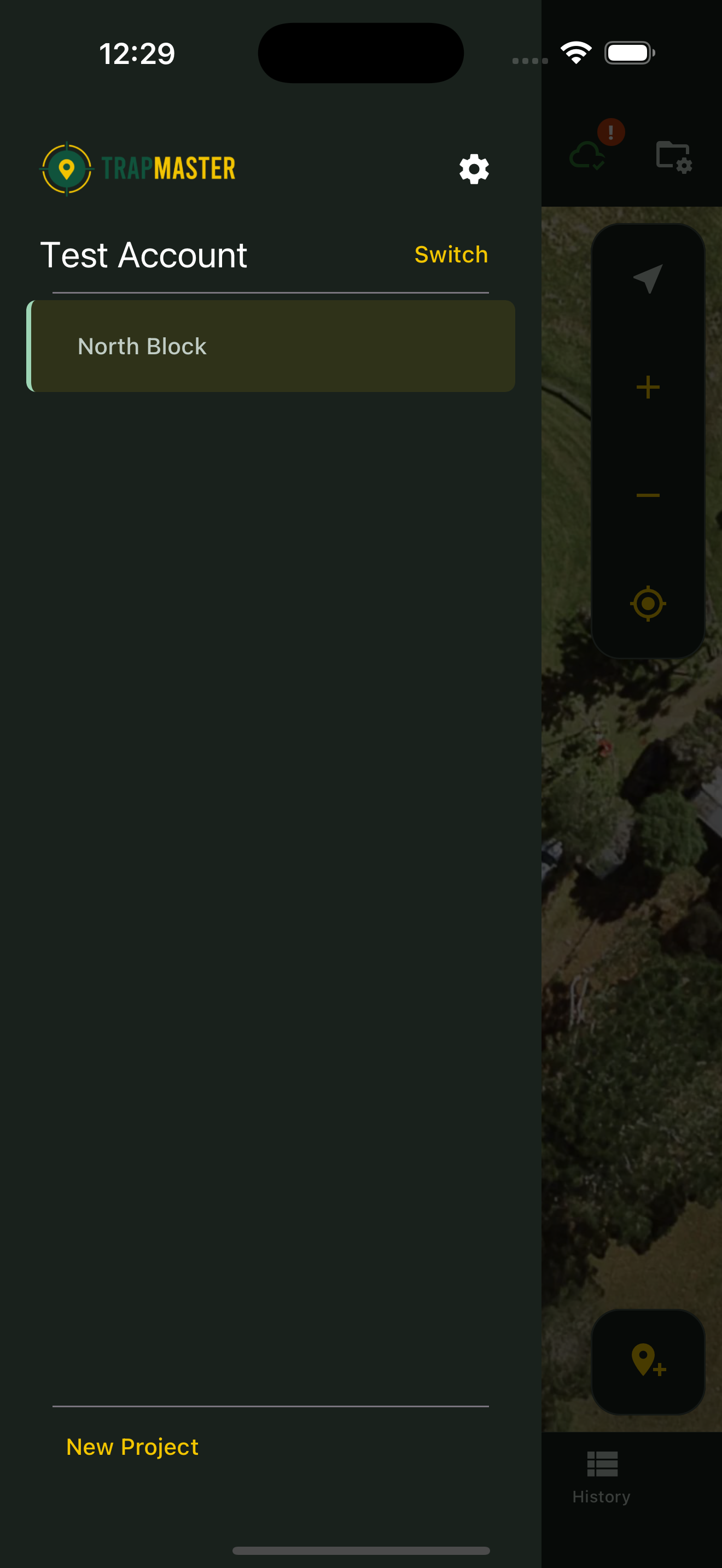
Open Project Settings and find the offline area controls. Choose Keep Area Offline.
02
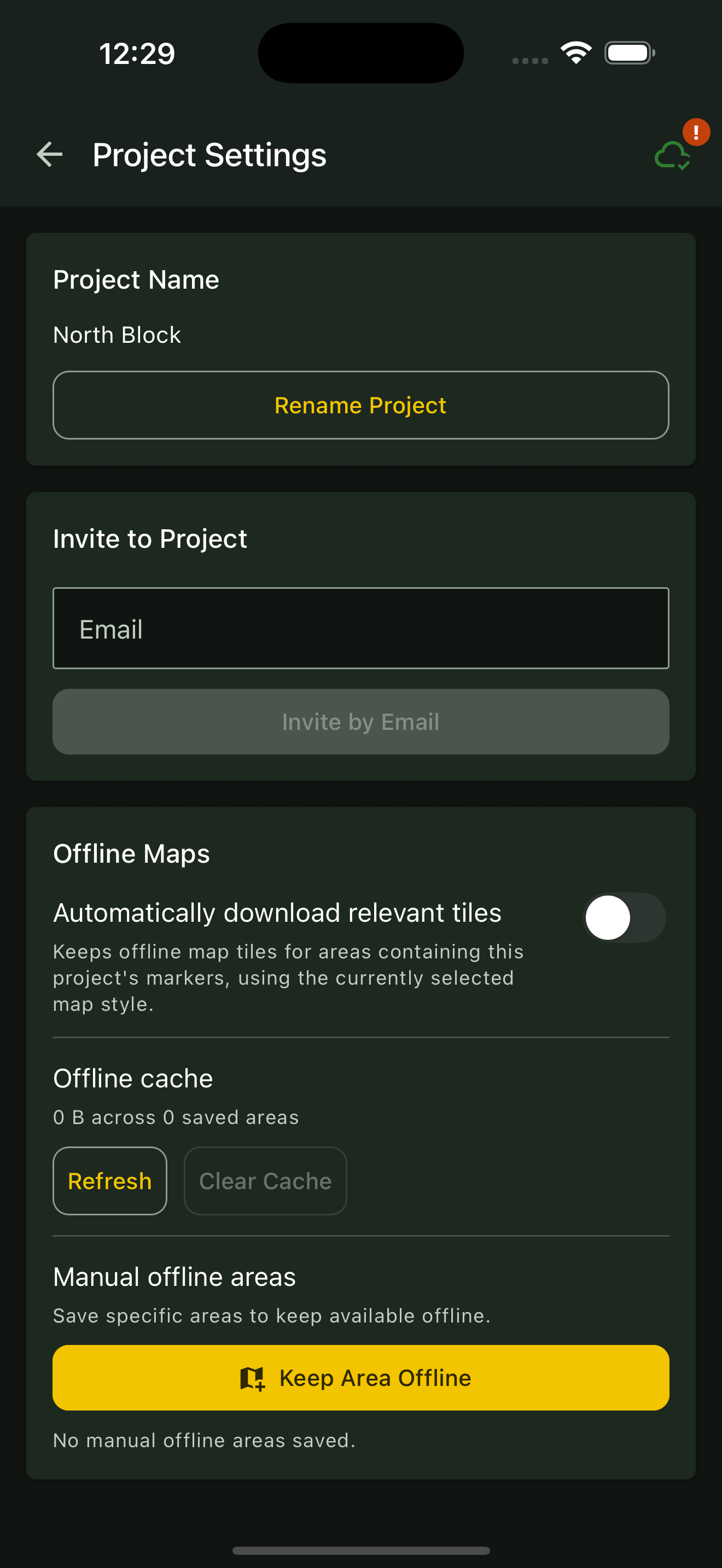
Frame and save the area
Pan, zoom or rotate the map until the area you need is inside the rectangle, then tap Save.
03
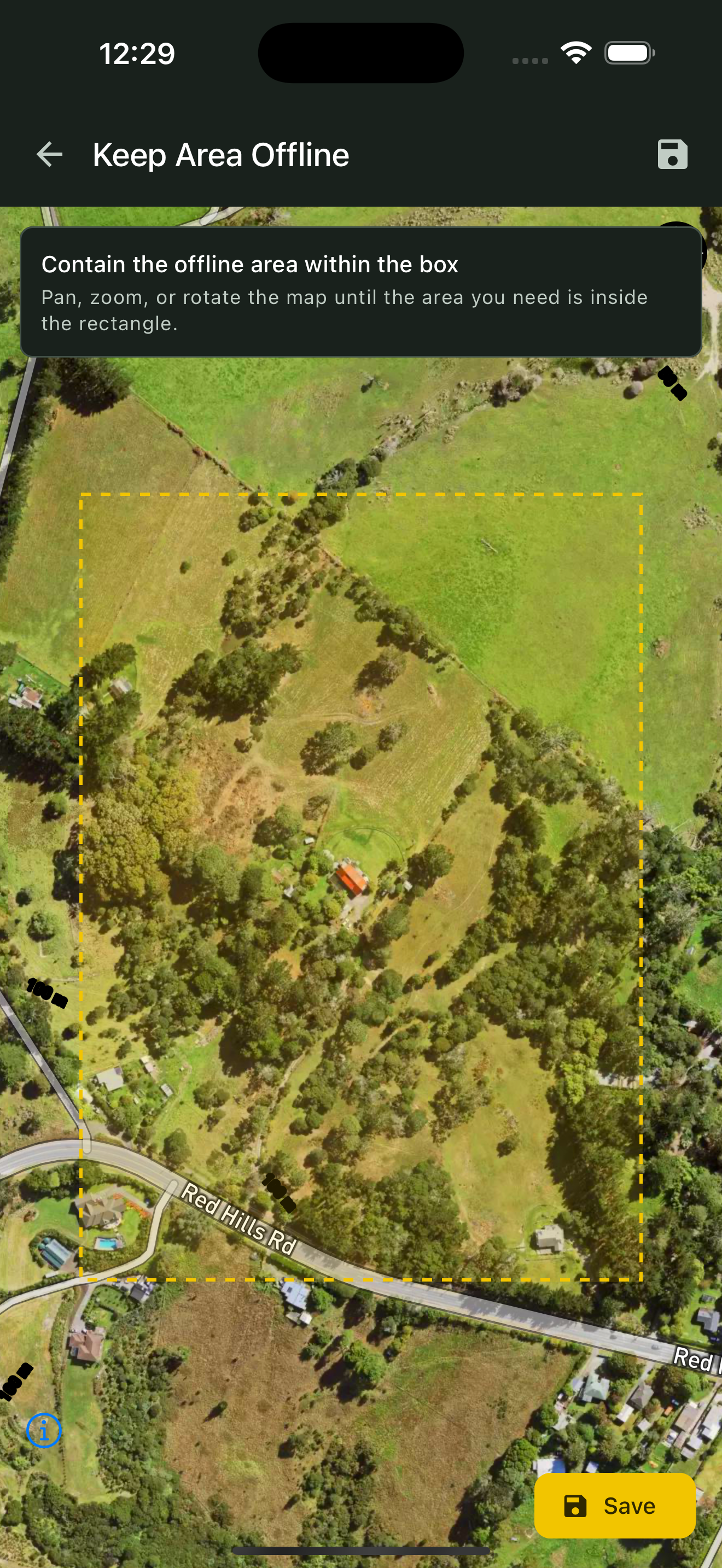
Check before leaving
Allow the map download to complete while connected. Check the saved area’s status and confirm you can view the map without a connection before heading out.
04
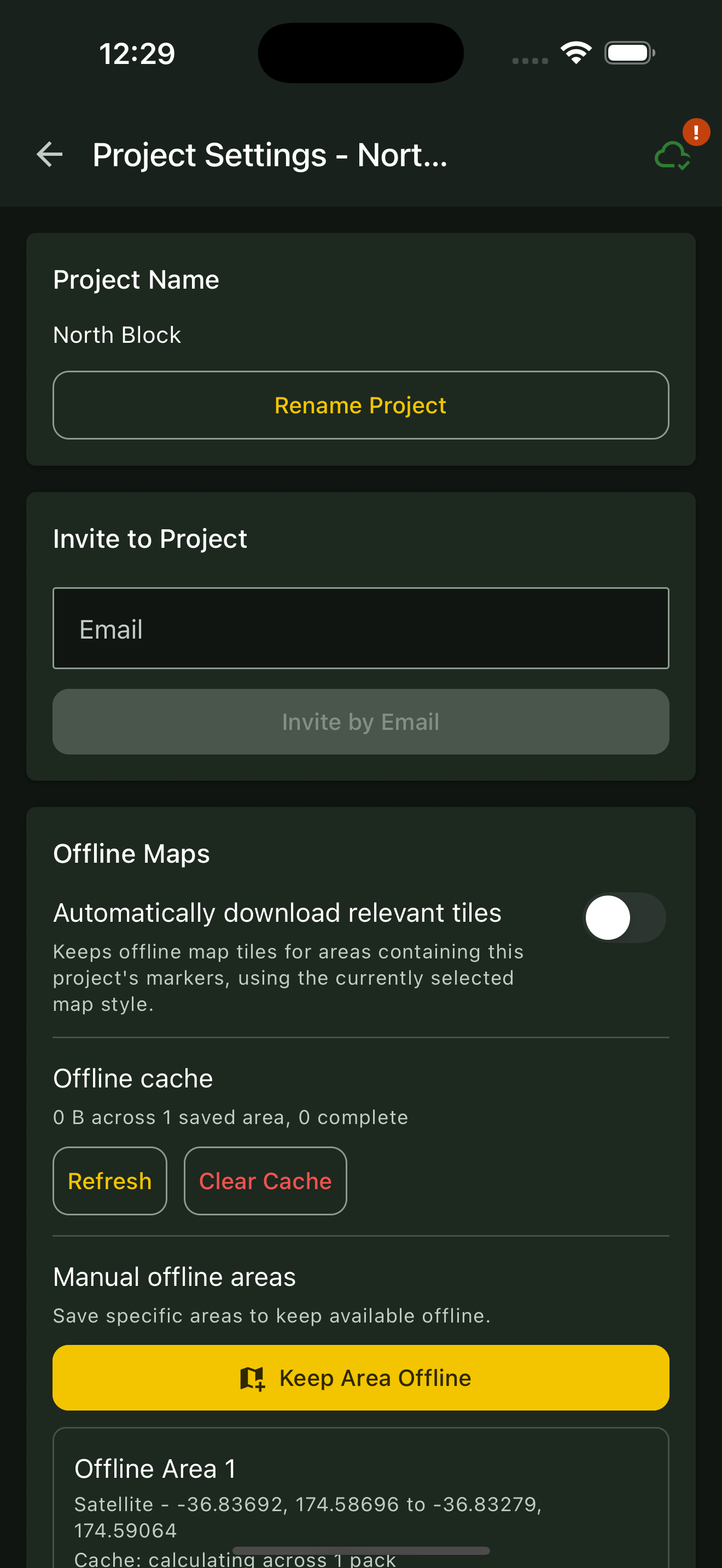
Record your field work
Record your activity in the app while offline. Reconnect and open the app when coverage returns so your changes can sync.